# Gitalk
> 迁移自:[Gitalk](https://docs.tangly1024.com/article/notion-next-gitalk)
> 发布日期:2022-12-11
> 最后编辑:2024-1-31
> 原栏目:📩 评论插件
> 标签:NotionNext、插件、Gitalk
> 摘要:NotionNext添加Giscus/Gitalk/Utterance的步骤教程
## Gitalk
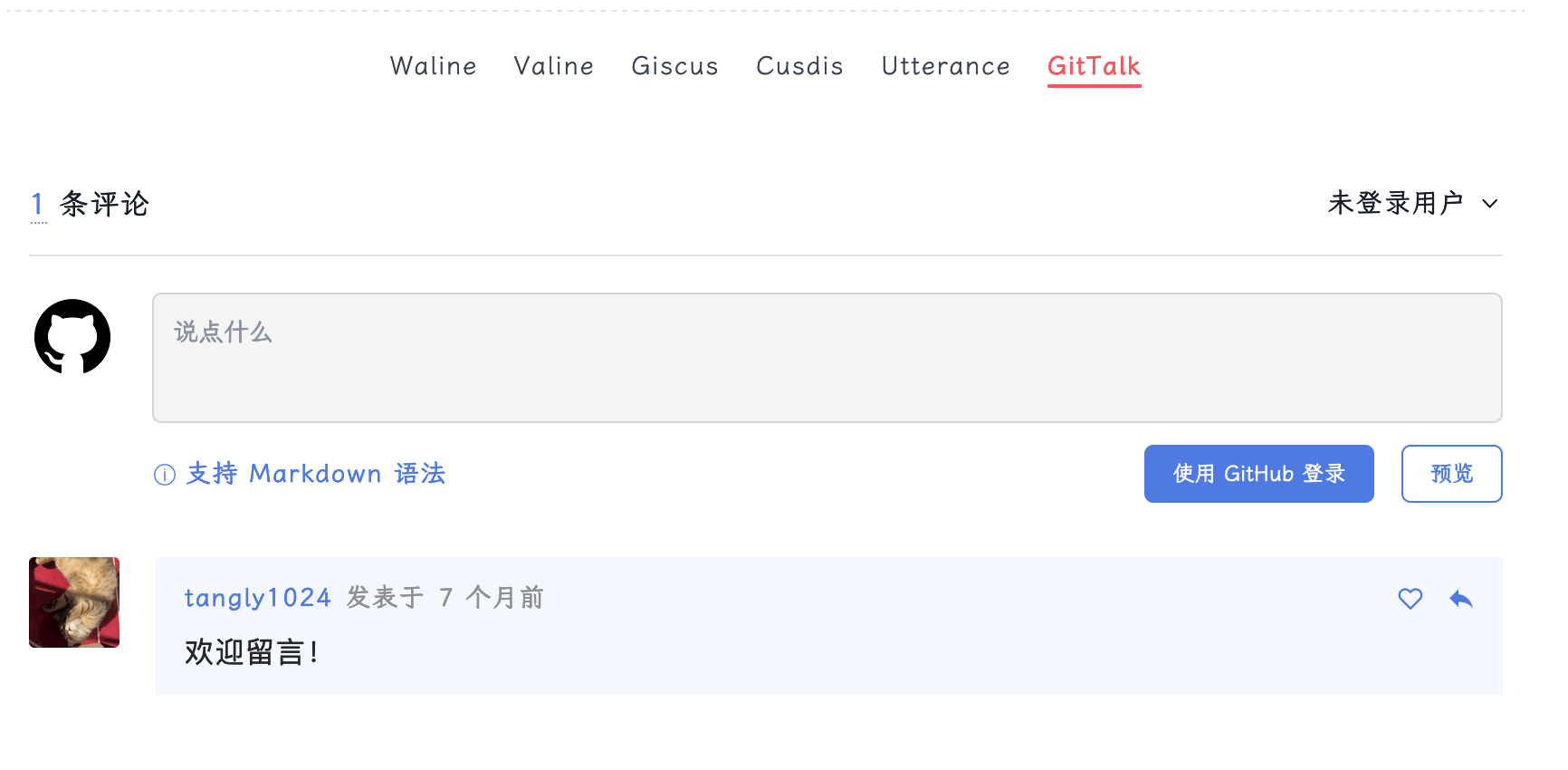
完成预览效果
## 配置gitalk
只需两步,创建github仓库,创建授权秘钥
在您的Github中创建一个开源项目用于存放评论
[Build software better, together](https://github.com/new)
You can't perform that action at this time. You signed in with another tab or window. You signed out in another tab or window. Reload to refresh your session. Reload to refresh your session.
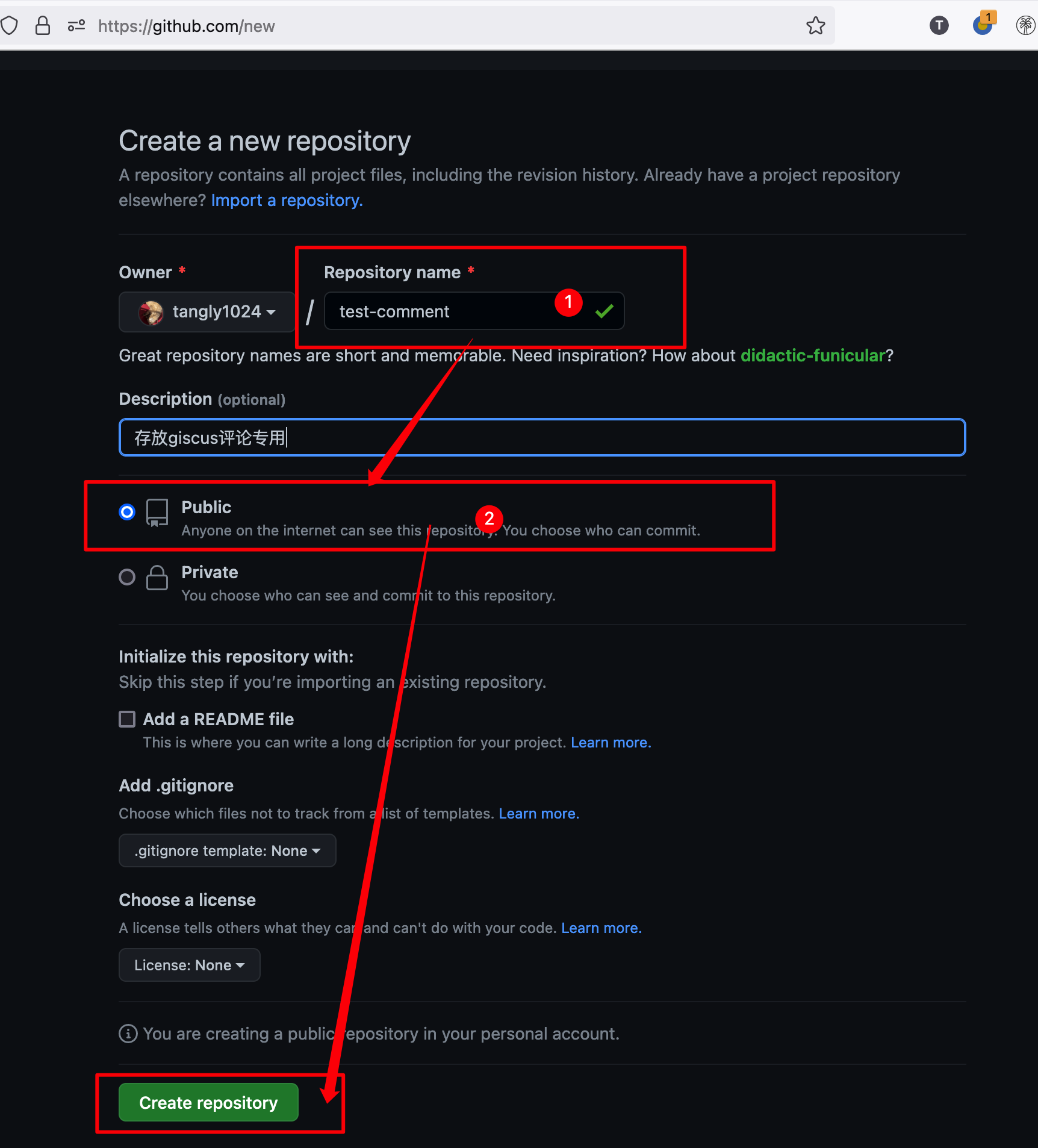
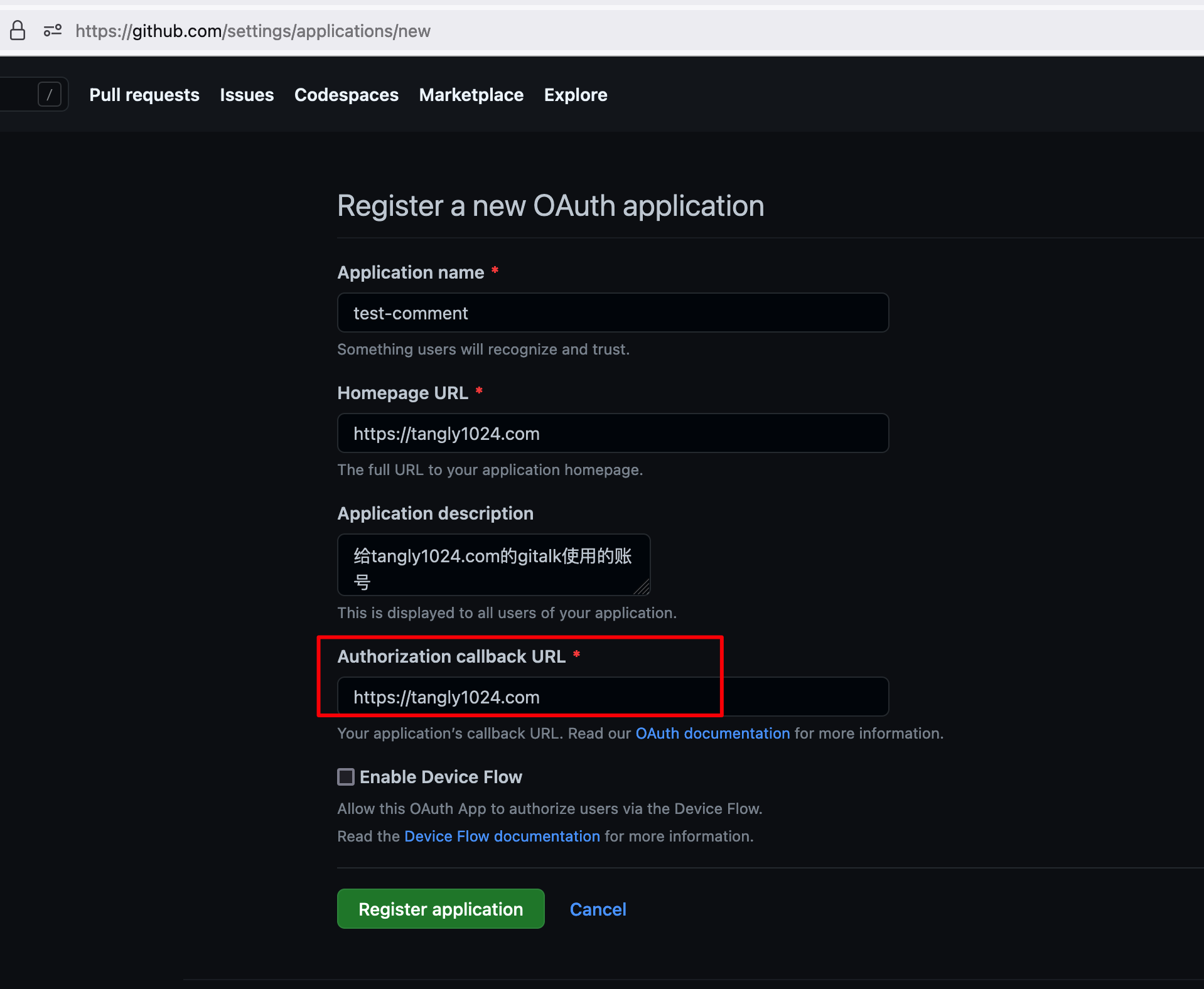
创建一个授权秘钥,并保存您的ClientID与ClientSecret
`Authorization callback URL` 填写您网站域名
[Build software better, together](https://github.com/settings/applications/new)
You can't perform that action at this time. You signed in with another tab or window. You signed out in another tab or window. Reload to refresh your session. Reload to refresh your session.
填写配置的效果 ,点击`register application` 即可创建。
点击 `Generate a new client secret `生成您的密码
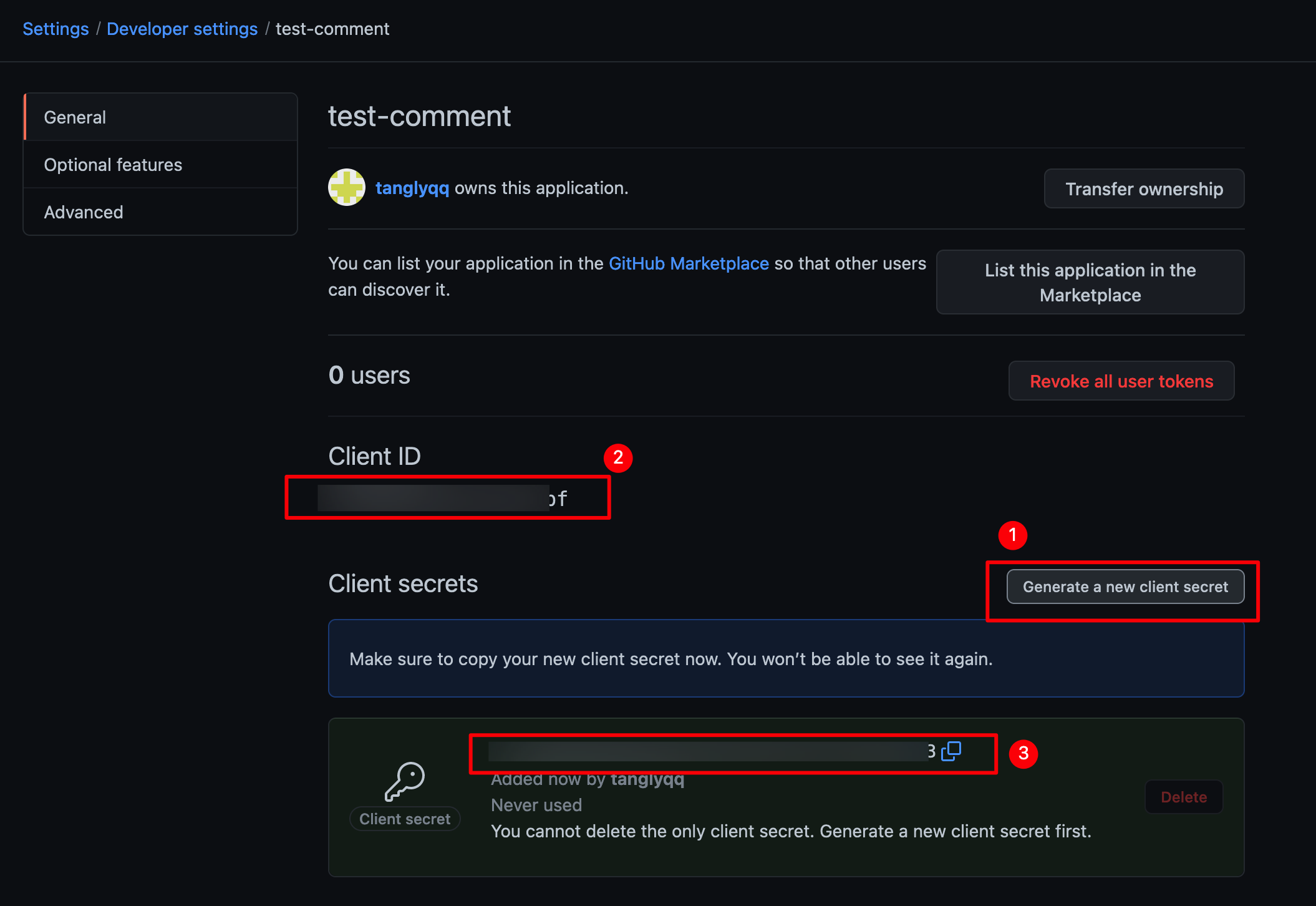
复制 `Client ID`和刚生成的 `Client secret` (对应图中2和3)备用。
## 配置 NotionNext
只需两步,配置环境变量,重新部署项目
在Vercel后台配置环境变量
gitalk参数和vercel环境变量的映射关系
vercel后台需要添加5个变量
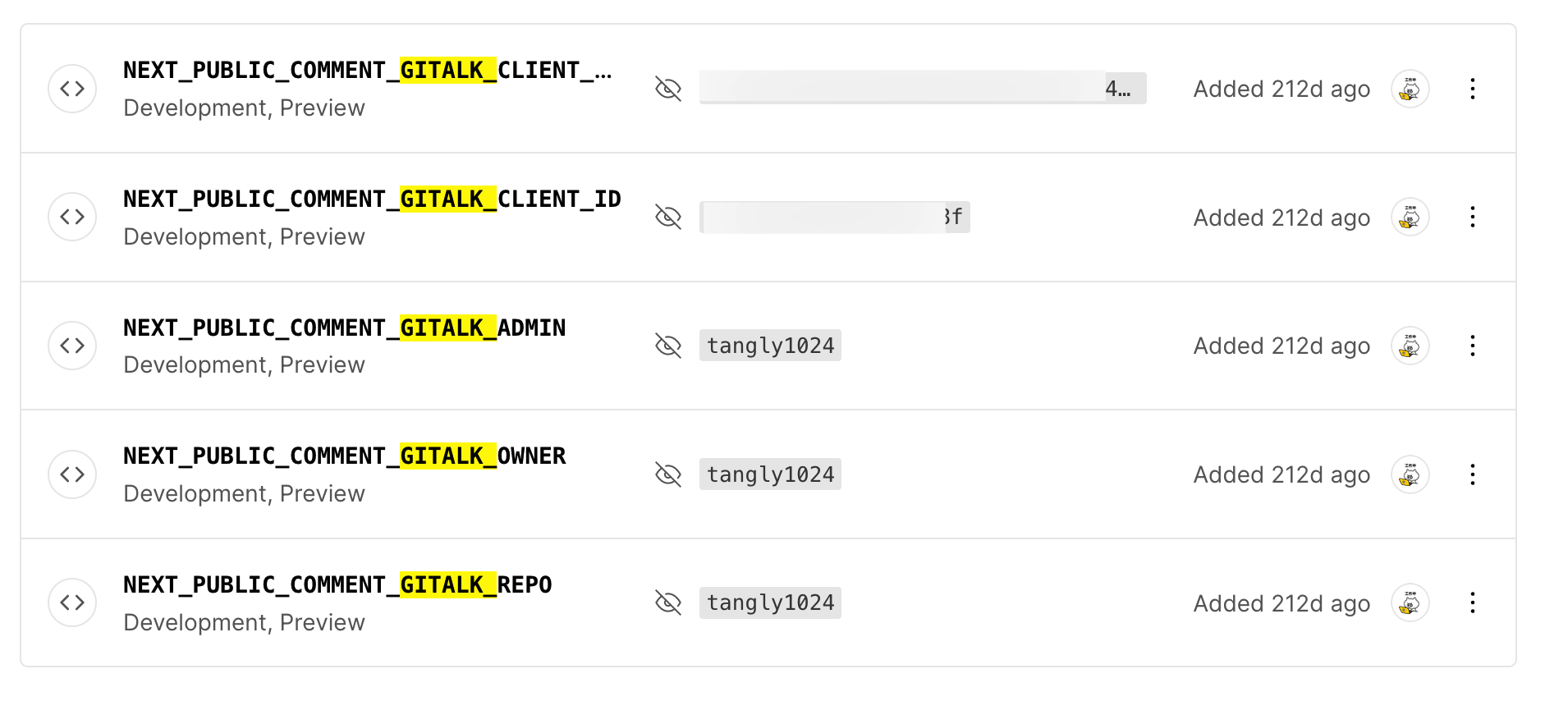
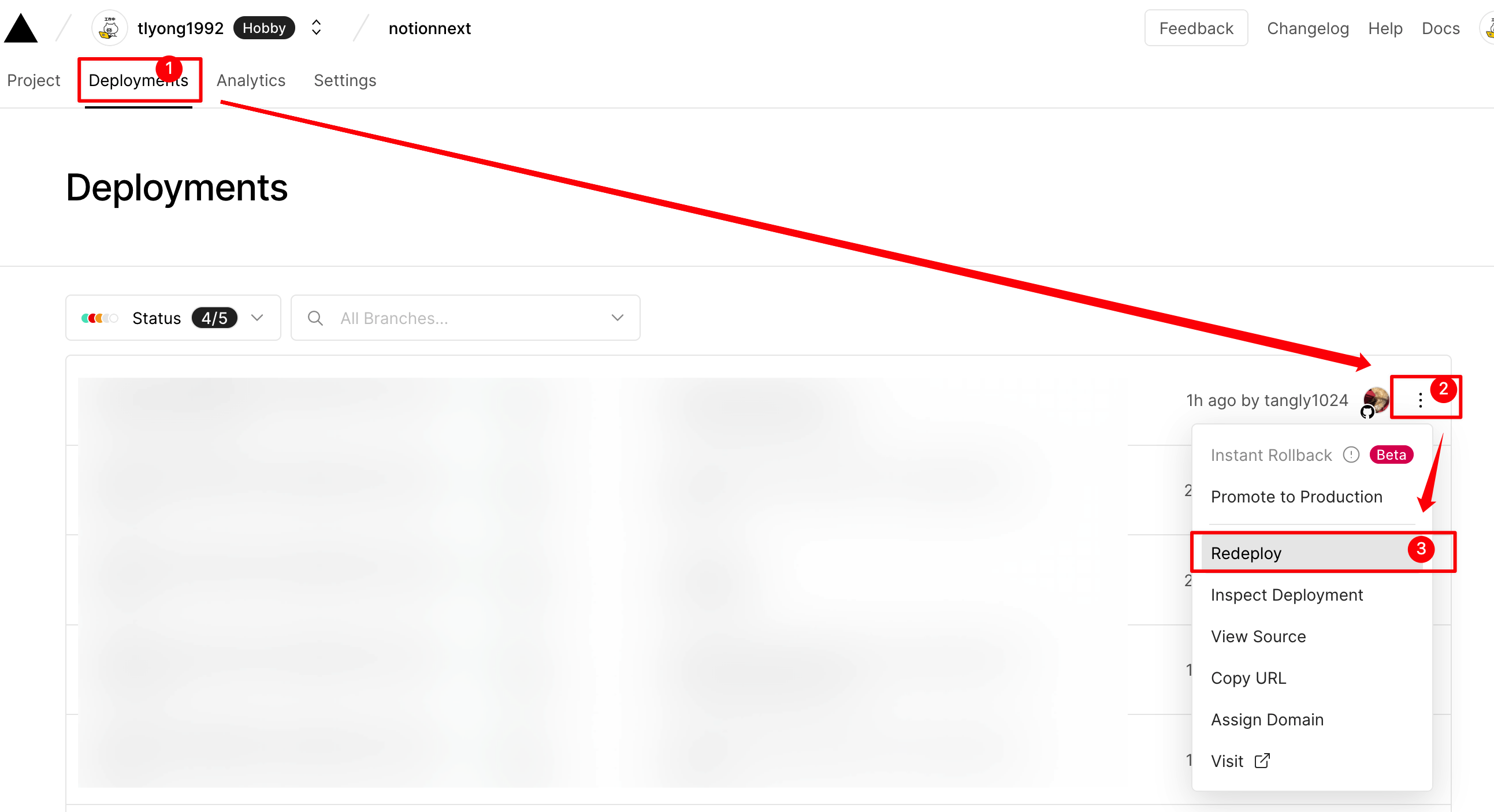
添加完环境变量记得Redploy项目。
## 原文链接
https://docs.tangly1024.com/article/notion-next-gitalk